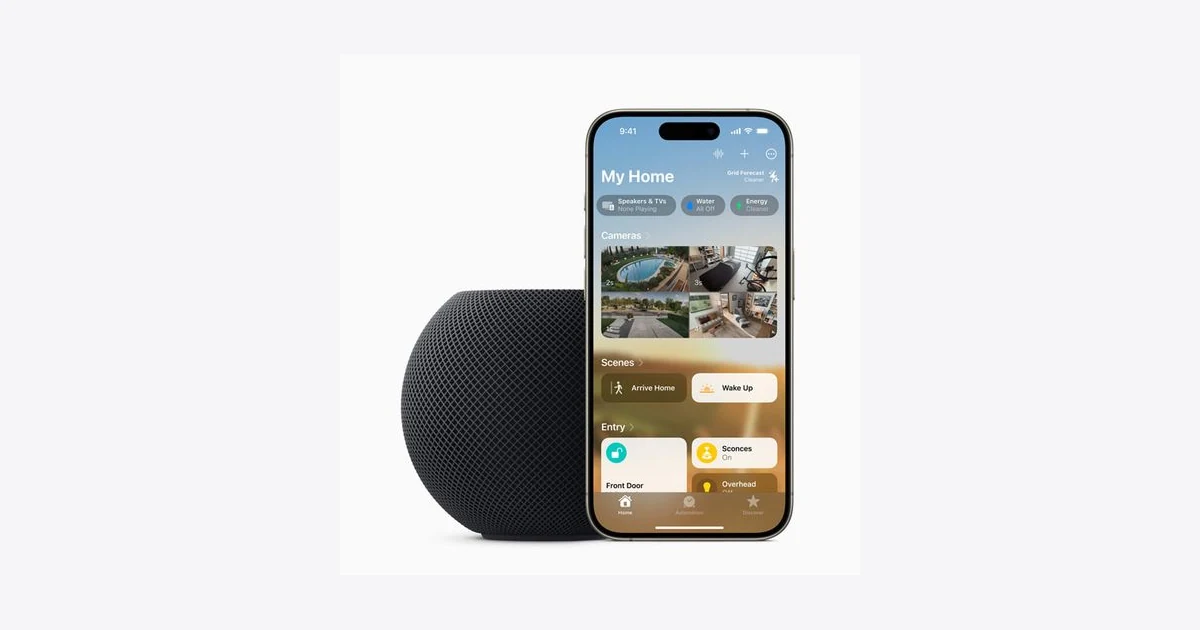
HomePod mini and HomePod (2nd generation) include temperature and humidity sensors. The Home app can show the current value or let you ask Siri for it, but it does not turn the HomePod readings into a detailed temperature chart.
With Apple Shortcuts and DataJot, you can record the temperature measured by HomePod at regular intervals and review how the room changes across days, weeks, or months.
Which HomePod Models Measure Temperature?
Apple identifies two models with temperature and humidity sensors:
- HomePod mini;
- HomePod (2nd generation).
The HomePod must be added to your home, assigned to the correct room in the Home app, and running recent software.
Before building a history, check that the reading is available. Open the Climate category in Home or ask Siri, “What’s the temperature in the living room?”
Apple notes in the HomePod User Guide that the sensor needs some time to calibrate after startup.
Does Apple Home Keep a HomePod Temperature History?
Home shows the current temperature and can use the sensor in automations. Its Activity History stores some events for 30 days, including events from locks, alarm systems, and Adaptive Temperature-supported thermostats.
Activity History is not a time series of raw HomePod sensor readings. It therefore cannot answer questions such as:
- How cold does the bedroom get overnight?
- At what time does the living room reach its maximum temperature?
- How long does it take to return to a comfortable temperature?
- Is the room more stable this week than last week?
For those uses, the readings need to be saved in a dedicated series.
Create a HomePod Series in DataJot
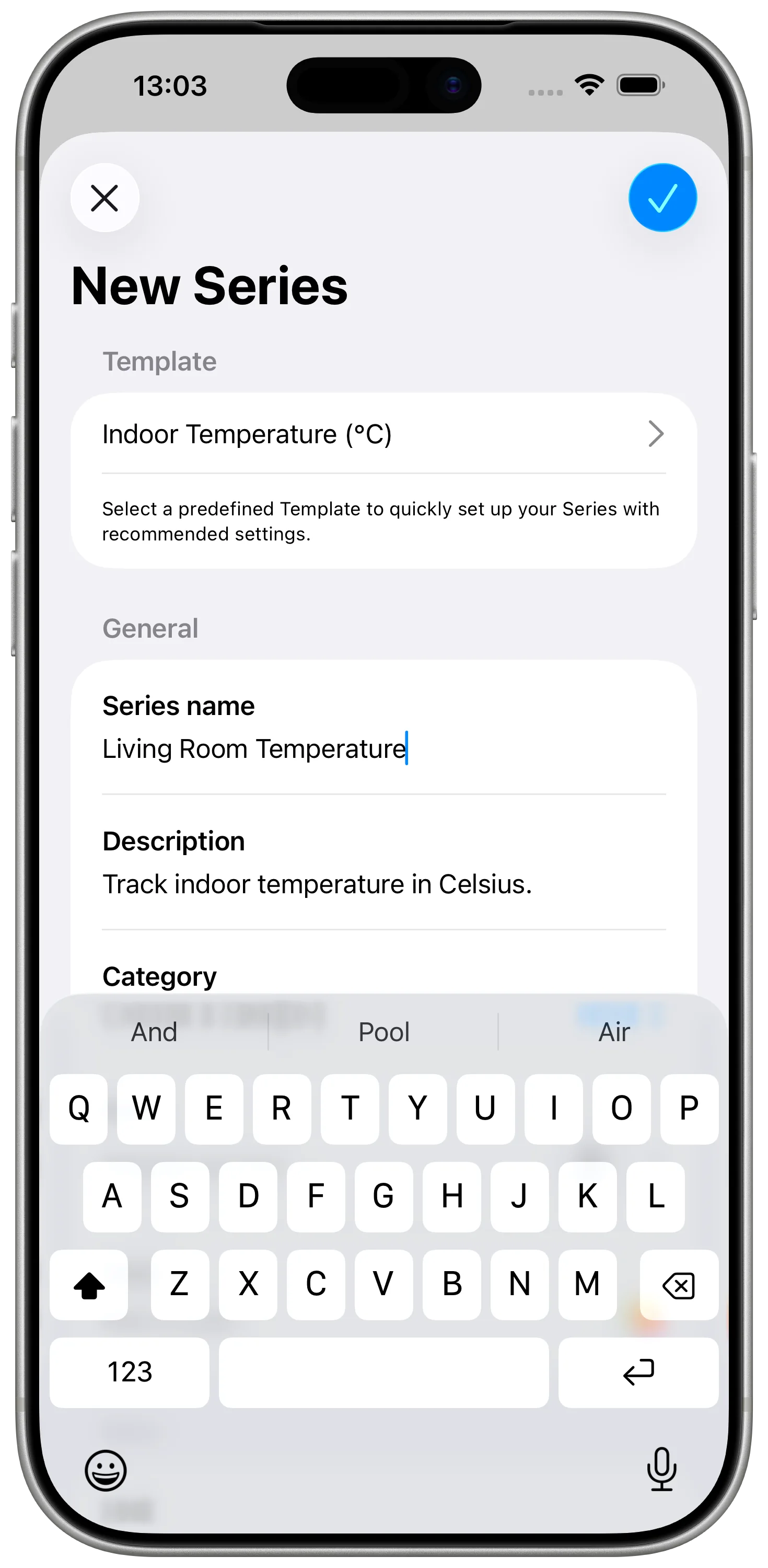
In DataJot, create a numeric series for the room where the HomePod is located. Give it a clear name such as Living Room Temperature – HomePod mini, then choose Celsius or Fahrenheit.
The quickest option is the Indoor Temperature template. To track humidity too, create a separate series with the Humidity template. Do not mix both measurements in one series.
Read the HomePod Temperature with Shortcuts
Create a shortcut with two steps:
- add Get the state of My Home and select the HomePod temperature sensor;
- add the DataJot action that records a value in the series you created.
Use the temperature returned by Home as the value of the new measurement. Run the shortcut manually once, then open DataJot and confirm that a point appears in the correct series.
If you have several HomePod speakers, check the room and sensor name carefully. A separate series for each room makes later comparisons much more reliable.
For a more detailed Shortcuts walkthrough, see Track HomeKit Temperature History with Apple Shortcuts.
Record Readings Automatically
Indoor temperature changes slowly. One reading every 30 or 60 minutes is usually enough to reveal heating cycles, overnight drops, and morning recovery.
In Shortcuts, create time-based automations that run your recording shortcut. To test the setup:
- start with a few times spread across the day;
- check the new measurements in DataJot;
- add more times later if you want a finer chart.
There is little benefit in recording the value every minute. Very frequent points increase the amount of data without adding much useful information about a room.
Read the Temperature History
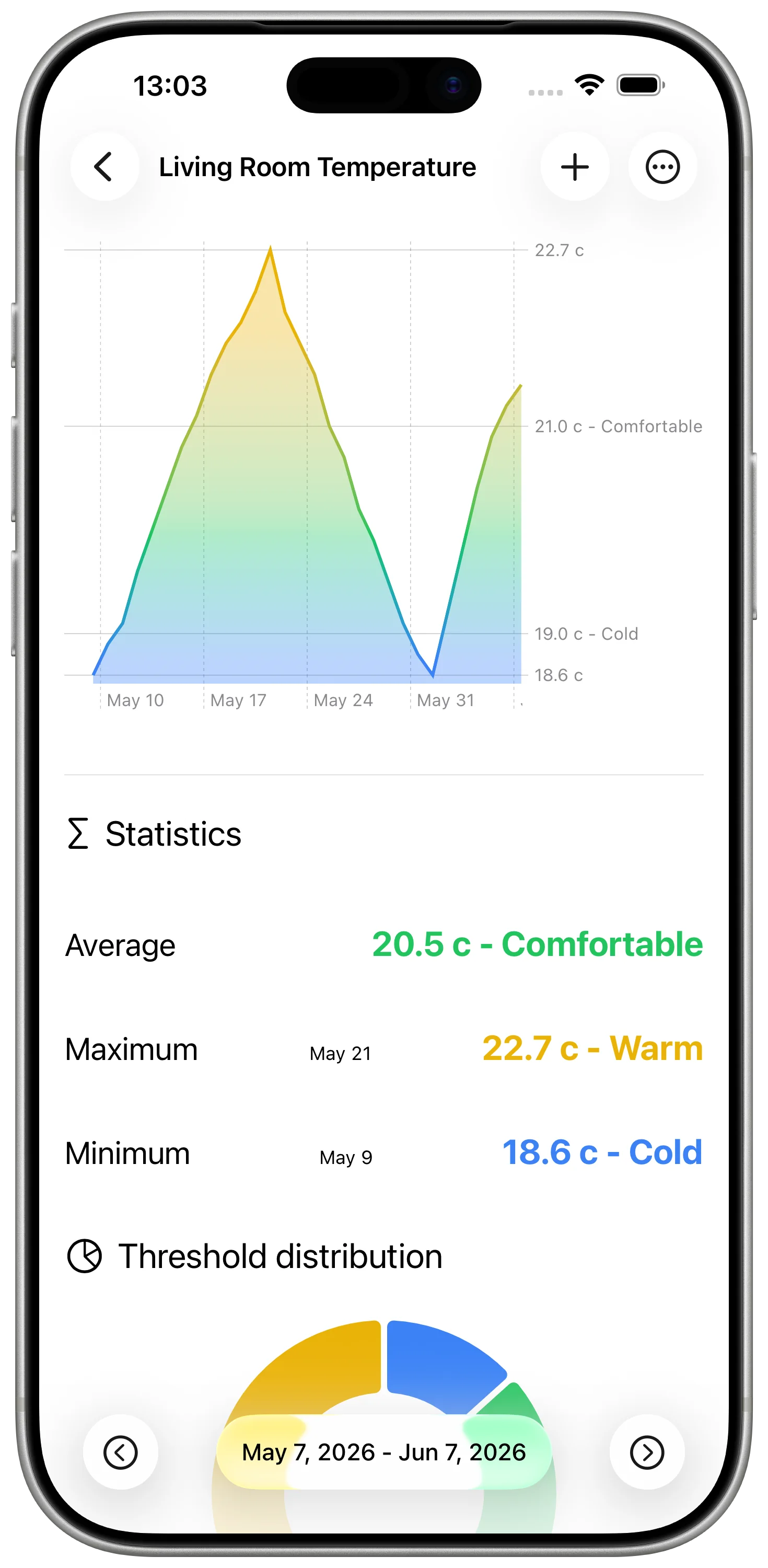
After a few days, the DataJot chart reveals what a live Home reading cannot:
- minimum and maximum values for each period;
- heating cycles;
- overnight temperature drops;
- the effect of opening a window;
- differences between rooms equipped with HomePod.
Statistics also provide an average for the selected period. With DataJot 1.5, you can browse earlier periods directly in the chart and move quickly from one week to another.
Understand the Sensor’s Limits
Apple says temperature and humidity sensing is optimized for indoor domestic environments around 15 to 30°C (59 to 86°F) and 30 to 70% relative humidity.
Accuracy may decrease when HomePod plays audio at high volume for an extended period. After a restart, also allow the sensor to calibrate before interpreting its first reading.
The chart is best used to observe trends and compare periods within the same room. It is not a replacement for a calibrated professional measuring instrument.
In Short
HomePod mini and HomePod (2nd generation) provide the current temperature of a room. Apple Shortcuts can pass that value to DataJot and build the history you need to understand nights, heating cycles, and differences between rooms.
The banner image is from Apple Newsroom. Sensor information and limitations come from the HomePod User Guide and Apple’s documentation for Activity History in Home.