Track HomeKit Temperature History with Shortcuts and DataJot
Learn how to record and visualize temperature changes measured by your HomeKit sensors using the Shortcuts app and DataJot.
Published on 10/31/2025
HomeKit sensors can measure a room’s temperature and humidity, but Apple’s Home app only shows the current value.
It doesn’t keep a record of measurements or allow you to analyze changes over time.
To track this data, you can use the Shortcuts app and DataJot, which records and displays collected values as time series.
All data is synced through iCloud, making it accessible on all your Apple devices.
Limitations of the Home App
The Home app displays readings from your HomeKit sensors, but it doesn’t offer charts or history.
No data is stored locally or viewable over time.
This limitation makes it impossible to track daily temperature variations or compare conditions between rooms.
Using HomeKit Shortcuts
Apple’s Shortcuts app can access data from HomeKit sensors.
It allows you to retrieve values like temperature, humidity, or any other compatible metric on demand.
By combining this feature with a third-party app capable of storing values and syncing through iCloud, you can build a complete and shareable data history.
Recording Measurements in DataJot
DataJot is an app that records local data series and syncs them via iCloud.
It can receive values from Shortcuts, store them, and display them as simple charts.
How It Works
- The shortcut reads a value from a HomeKit sensor.
- It sends this value to DataJot using the “Add Value” action.
- DataJot saves the data into a series, which can be viewed anytime on any device.
Tutorial: Track Living Room Temperature
Step 1 — Create a Shortcut
- Open the Shortcuts app on your iPhone or iPad.
- Add the “Get Current Temperature” action for the desired sensor.
- Then add the “Add Value in DataJot” action.
- Specify the series name (for example, “Living Room Temperature”).
- Save the shortcut.
Step 2 — Automate the Recording
Schedule the shortcut to run automatically at regular intervals or based on an event (specific time, Wi-Fi connection, etc.).
This automation ensures consistent data collection for a complete history.
Step 3 — Visualize in DataJot
Open DataJot: your series now displays the temperature evolution over time.
You can also add a widget to show the latest value on your home screen.
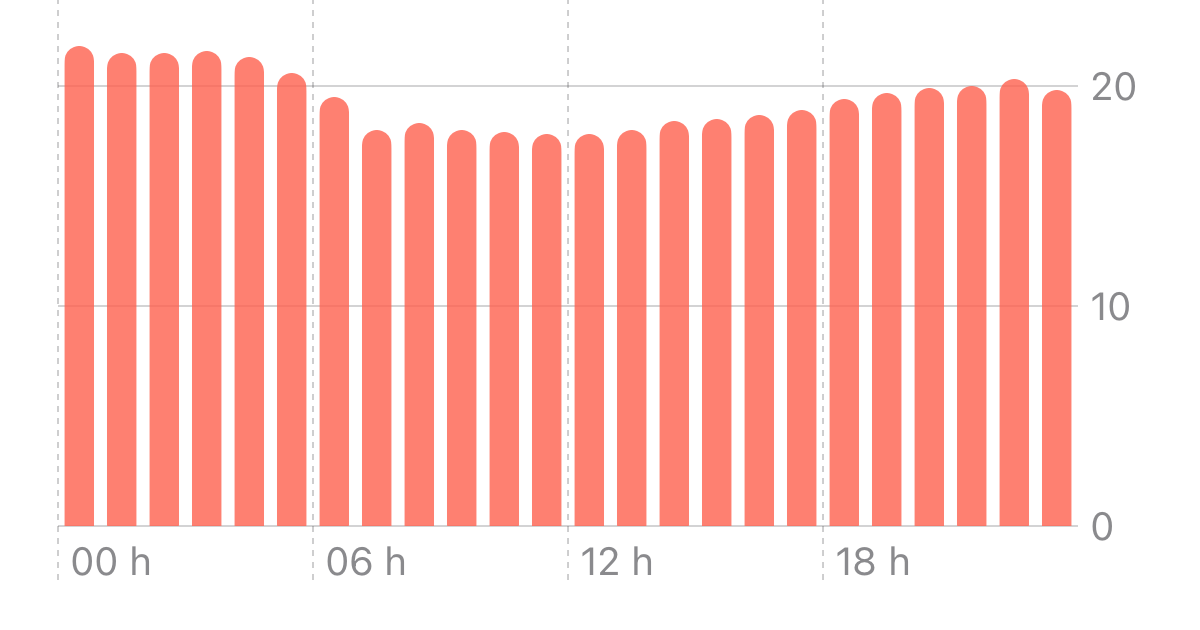
Example: Tracking Living Room Temperature
In this example, you can see:
- A drop at night when the heating is off.
- A rise in the morning.
- Stabilization during the day.
Thanks to DataJot and iCloud synchronization, these variations are visible and accessible across all your devices.
Extend the Tracking
The same method can be applied to other data types:
- Humidity
- Brightness
- CO₂ or air quality
- Other numeric values (weight, sleep, activity)
DataJot lets you create multiple series and monitor various sensors across all your Apple devices via iCloud.
In Short
HomeKit doesn’t keep a history of temperature measurements.
By using the Shortcuts app and DataJot, you can automate the collection and visualization of this data.
This method provides reliable tracking accessible on all your Apple devices.