Track Indoor Humidity and Air Quality with HomeKit
Use HomeKit sensors, Apple Shortcuts, and DataJot to track indoor humidity and air quality history room by room.
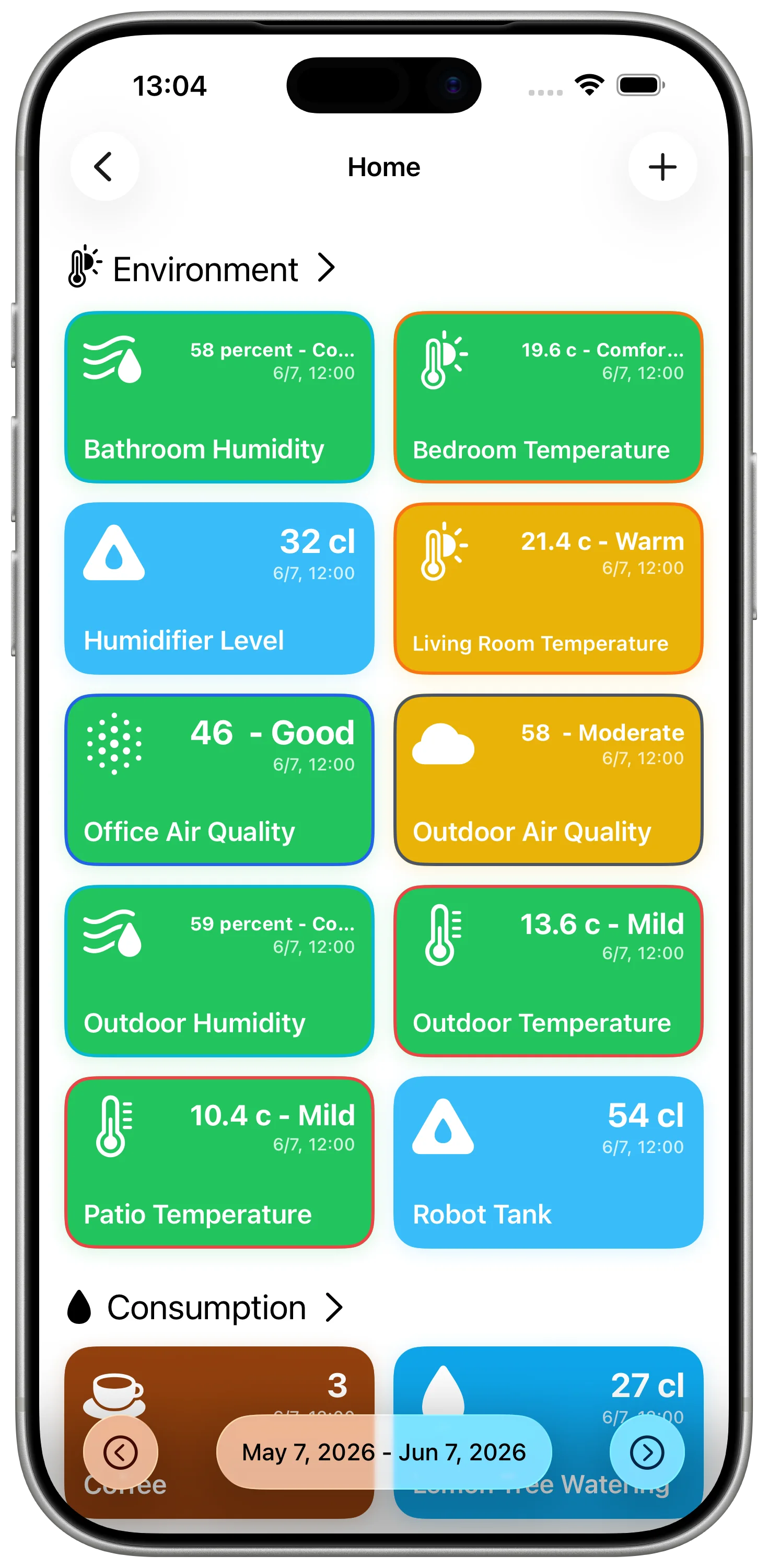
Temperature is only one part of indoor comfort. Humidity and air quality often explain why a room feels uncomfortable even when the temperature looks fine.
If your HomeKit accessories expose humidity, air quality, CO2, or similar numeric readings, you can record those values with Apple Shortcuts and review them in DataJot over time.
Why Track Humidity and Air Quality
Current readings are useful, but history is what shows patterns.
Humidity history can help you understand:
- bathroom moisture after showers;
- bedroom air overnight;
- dry winter air;
- whether ventilation is working.
Air quality history can help you notice:
- repeated spikes at certain times;
- effects from cooking, cleaning, or ventilation;
- differences between rooms;
- slow recovery after opening windows.
DataJot is not a medical or professional monitoring system, but it is useful for personal observation and everyday home awareness.
Create Separate Series
Do not mix humidity, air quality, and temperature in one series. Create one DataJot series per measurement.
Use the HomeKit value as the source of truth for that series: one humidity sensor writes to one humidity series, and one air quality sensor writes to one air quality series. That keeps the chart readable and prevents unrelated units from being mixed together.
You can start with the Humidity or Indoor Air Quality template, then rename it for the room. For another sensor type, create a custom series and configure the unit and chart manually.
Build the Shortcut
For each measurement, create a shortcut that:
- reads the value from the HomeKit accessory;
- sends the numeric value to the correct DataJot series;
- runs once manually for testing.
The structure is the same as a HomeKit temperature shortcut. The only difference is the sensor field you select.
For the core setup, start with Track HomeKit Temperature History with Apple Shortcuts and replace the temperature value with humidity or air quality.
Choose a Frequency
Humidity and air quality can change faster than temperature, but you still do not need to record constantly.
For slow changes, an hourly reading is usually enough. For rooms that change quickly, such as a bathroom after a shower or a kitchen while cooking, record more often or trigger the shortcut manually at that moment.
What to Look For
After collecting data for a few days, look for repeated patterns.
For humidity:
- Does the bathroom stay humid for too long?
- Does the bedroom get very dry overnight?
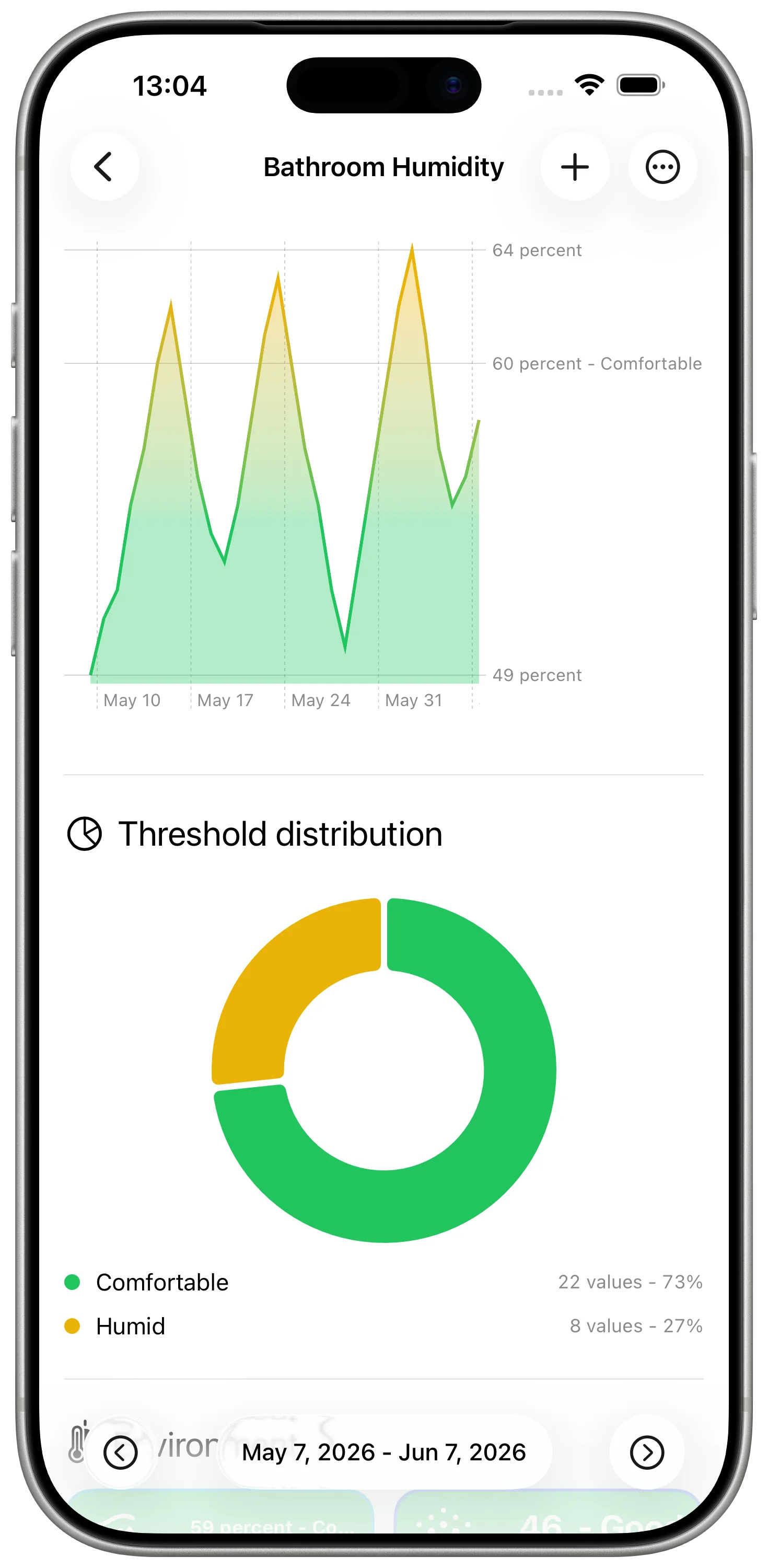
- Does opening a window visibly change the curve?
For air quality:
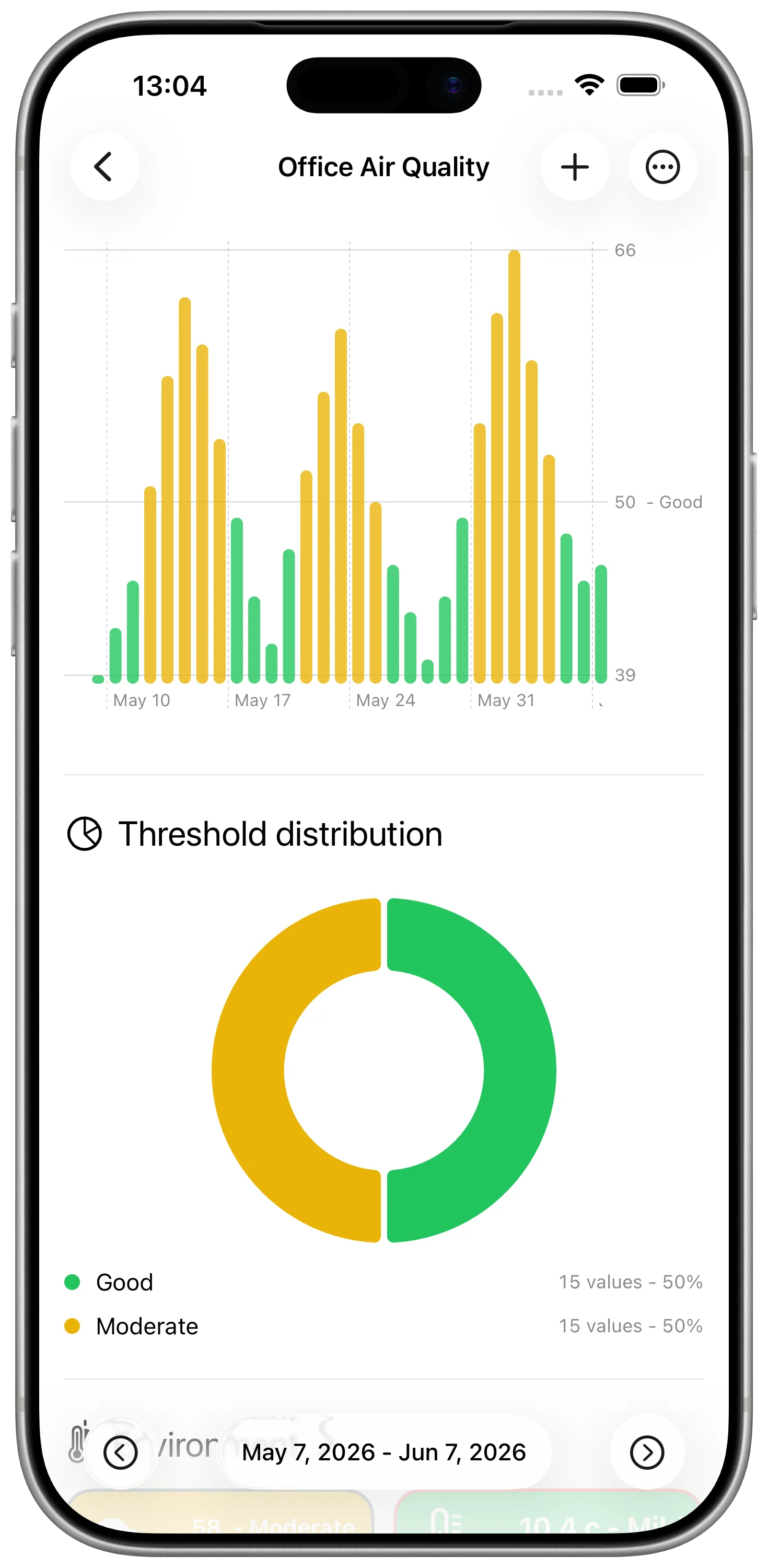
- Are there repeated spikes at the same time of day?
- Does the value recover quickly after ventilation?
- Is one room consistently worse than another?
The chart is useful when it shows recovery time: how long humidity stays high after a shower, or how quickly air quality improves after ventilation.
Combine with Temperature
Humidity, air quality, and temperature are often more useful together. For example, a bedroom may feel uncomfortable because it is dry, not because it is cold. A bathroom may need better ventilation even if the temperature is stable.
Use separate DataJot series, then compare the charts when you need context.
For a chart-focused temperature workflow, read How to Make a HomeKit Temperature Graph.
In Short
HomeKit can expose useful indoor environment readings, but Apple Home does not give you a complete history. DataJot and Apple Shortcuts let you record humidity and air quality over time so you can understand room behavior, ventilation, and comfort patterns.