DataJot can turn any numeric series into a simple counter. You can count coffees, visitors, workouts, sales, habits, medication reminders, pages read, gas meter readings, or any other recurring event.
The key idea is simple: each tap adds a value to a series, and DataJot sums those values over time.
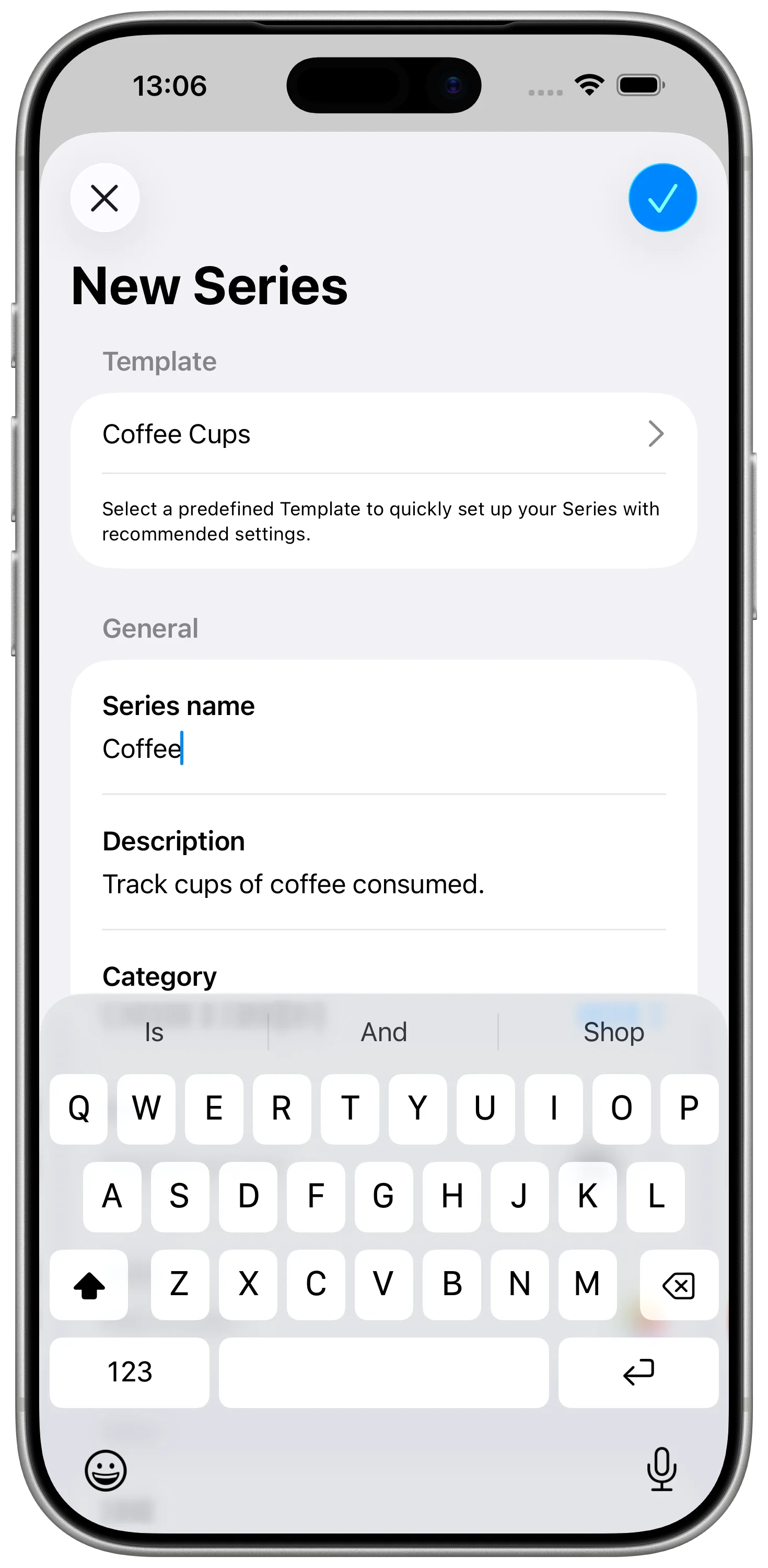
Create the Counter Series
- Open DataJot.
- Create a new numeric series.
- Name it after the thing you are counting.
- Set the aggregation method to Sum.
The sum aggregation is what makes the series behave like a counter. Instead of averaging values or only showing the latest entry, DataJot totals the values you add.
If a template already matches the counter, use it first. For example, Coffee, Cigarettes, or Snack Count are ready-made series. For anything else, configure a numeric series manually and set aggregation to Sum.
The documentation explains how to create a series, use templates, and choose an aggregation method.
Add a Widget Counter
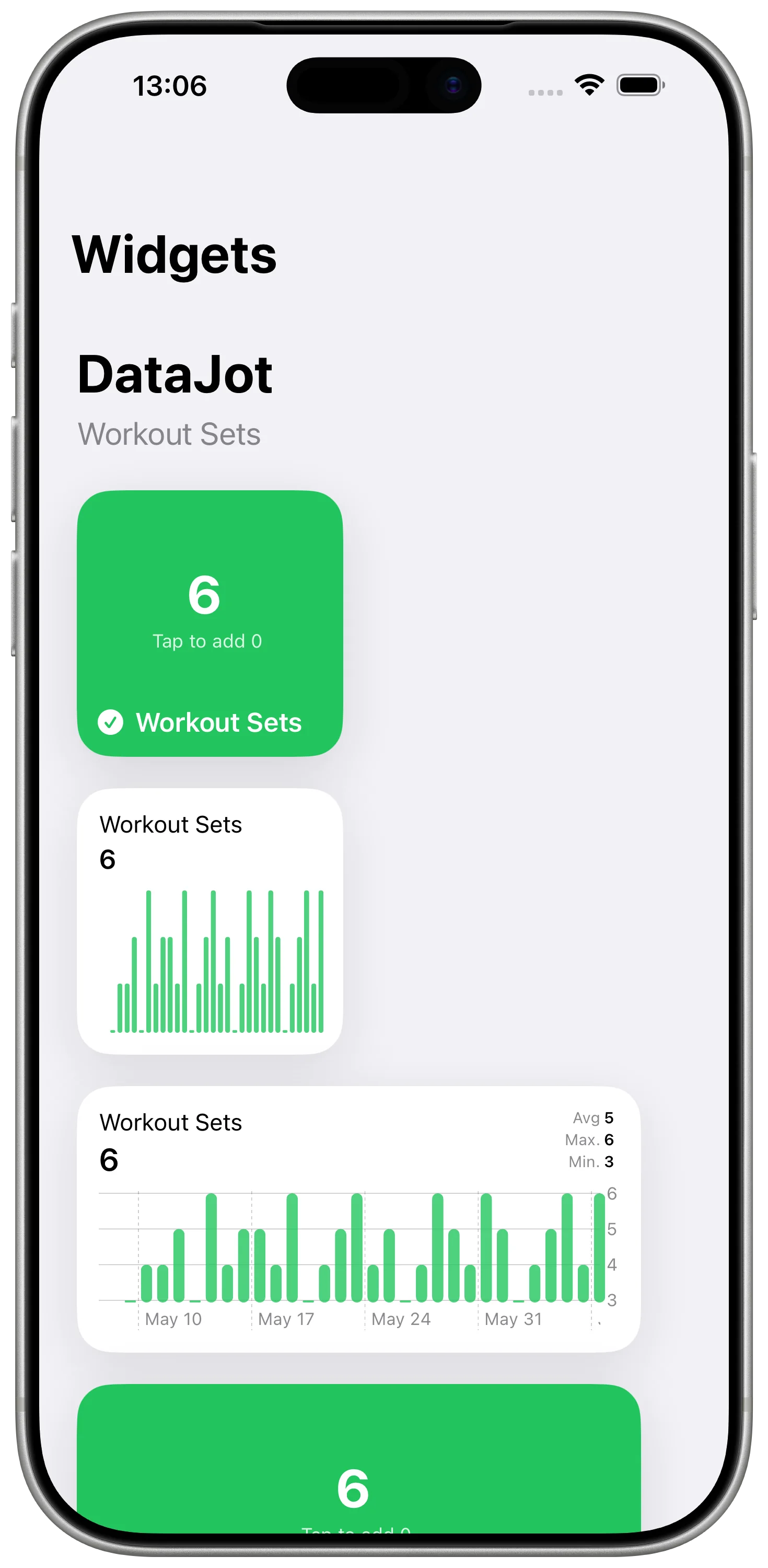
A widget counter is useful when you want the fastest possible entry.
- Add a DataJot widget to your Home Screen.
- Select the counter series.
- Choose the increment value, such as +1.
- Tap the widget whenever the event happens.
This is the right option when the same tap always adds the same value.
Create a Shortcut Counter
Apple Shortcuts gives you more flexibility than a single widget.
- Open Shortcuts.
- Create a new shortcut.
- Add the DataJot action for adding a value to a series.
- Select your counter series.
- Set the value to add, such as 1, 5, or 10.
- Save the shortcut with a clear name.
You can place that shortcut on the Home Screen, in a Shortcuts widget, or use it from the Action Button on supported iPhones.
Widget Counter vs. Shortcut Counter
Use a DataJot widget when:
- you have one counter you use constantly;
- one tap should always add the same value;
- speed matters more than flexibility.
Use a Shortcuts widget when:
- you want multiple counters in one widget area;
- you need different increment values;
- you want to combine DataJot with other shortcut actions.
Both approaches save values to the same kind of DataJot series.
Pick the Right Increment
The value you add does not have to be 1. Use the number that matches the action.
For example, a coffee shortcut can add 1, a push-up shortcut can add 10, and a reading shortcut can add the number of pages finished in that session.
Use the iPhone Action Button
If your iPhone has the Action Button, you can assign it to a DataJot shortcut.
- Open Settings.
- Go to Action Button.
- Choose Shortcuts.
- Select your DataJot counter shortcut.
This creates a physical counter button for the series you use most.
In Short
To create a counter with DataJot, make a numeric series, set aggregation to Sum, and add values through a widget or Apple Shortcut. The important setting is Sum: it turns repeated entries into daily, weekly, or monthly totals.